How to Choose MINJCODE Thermal Receipt Printers?
Choosing a receipt printer is less about chasing the fastest specification and more about matching equipment to daily work. A counter-service café, a busy checkout, and a mobile sales desk place different demands on printing. That matters. When comparing MINJCODE thermal receipt printers, begin with receipt width, expected print volume, and the connection options your point-of-sale system supports. Check whether USB, Ethernet, Bluetooth, or Wi-Fi fits the actual counter layout; an unused interface adds little value. Small details count. Consider print speed and resolution alongside cutter design, paper loading, and the ease of replacing a roll during a rush. Staff notice those details at 6 p.m. Confirm compatibility with your POS software, operating system, and receipt format before ordering. These checks can reduce avoidable setup problems.
Selection should reflect real conditions, not a product-page headline. Estimate peak-hour transactions, available counter space, cable routes, and how often the printer will be used. If receipts include dense text, logos, or small codes, review a sample print rather than relying on resolution numbers alone. Ask the supplier about manuals, warranty coverage, replacement parts, and technical support. Clear answers are useful. No printer is perfect. A model that works well in one shop may be inconvenient in another, especially when software or network settings change. Compare MINJCODE thermal receipt printers against your workflow, budget, and support needs—not just headline speed. A short checklist and a practical test print can reveal issues before installation. That modest step can prevent frustration later.
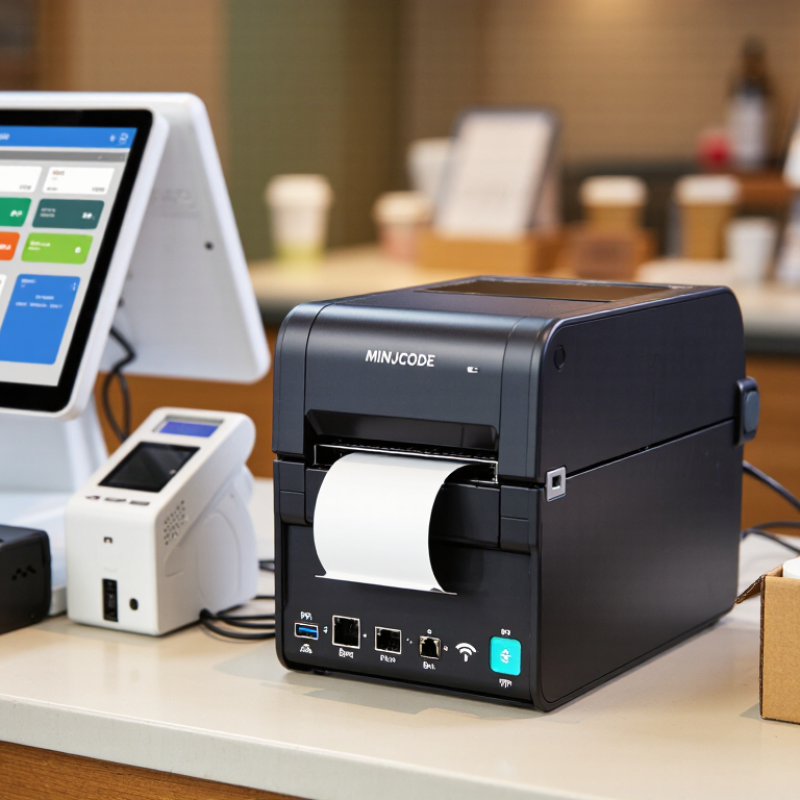
Identify Your Receipt Volume, Counter Space, and Operating Needs
A thermal receipt printer should fit the pace of your counter, not just its available features. Estimate your busiest hour, including weekend rushes and seasonal spikes. A small café printing a few dozen receipts per hour has different needs from a shop processing orders continuously. Check the printer’s rated speed and duty cycle, but leave some headroom. A device running near its limit may struggle during sustained peaks. Test with your typical receipt length, too; long itemized slips take longer to print.
Measure the counter before choosing a model. Note the printer’s footprint, cable paths, and clearance for opening the paper cover. A compact unit can free up space beside the register, but awkward paper loading may slow staff down. Consider connection options that match your point-of-sale setup, and confirm the printer works with your software. These details are easy to overlook. I would also test paper loading and receipt cutting during a busy shift; specifications cannot show every small frustration.
Tips: Track receipts for a typical week. Measure the counter twice. Keep spare paper nearby, and check whether staff can reload it without moving other equipment. If volumes vary widely, choose capacity for peak periods—but remember that extra speed alone will not fix a crowded, poorly arranged counter.
How to Choose a Thermal Receipt Printer
Identify your receipt volume, counter space, and operating needs.
Estimated paper use assumes an average receipt length of 15 cm; actual use varies with receipt content and settings. Higher-volume counters may benefit from faster printing and fewer roll changes. For tight counters, compare printer dimensions before buying; also check that its connection options and cutter suit your workflow.
Compare MINJCODE Printer Types and Supported Paper Sizes
Receipt printer choice starts with paper width, not the printer’s appearance. Compact mobile models commonly use 58 mm rolls, which suit short receipts and narrow counters. Standard desktop units often accept 80 mm rolls, leaving room for larger type, tax details, and QR codes. Some kiosk printers support wider rolls, such as 112 mm, but availability depends on the specific model. Check maximum roll diameter and core size too. A roll that fits the width may still not fit the paper compartment.
Printer type affects daily handling. Mobile units are light and battery-powered, useful for curbside orders or pop-up counters. Desktop models handle steady checkout traffic and usually offer easier roll changes. Kiosk mechanisms are built for fixed installations and longer unattended operation. There is a trade-off. Wider paper can improve readability, yet it takes more storage space and may raise paper costs. Grand View Research estimated the global thermal printing market at USD 4.8 billion in 2022, with a projected 5.8% compound annual growth rate from 2023 to 2030. That market figure signals broad adoption, not a guarantee of fit. Measure the current receipt, test the intended roll, and verify the printer’s stated paper-width range before ordering. Small details matter. I have seen paper specifications overlooked, then regretted it.
How to Choose a Thermal Receipt Printer: Compare Printer Types and Supported Paper Sizes
Paper widths and roll capacities vary by model. Check the printer specifications and paper-path requirements before purchasing.
| Printer type | Common paper widths | Typical roll capacity | Best suited to | What to consider |
| Compact desktop | Usually 58 mm; some models support 80 mm | Often up to about 60–80 mm roll diameter | Small counters, cafés, and limited-space checkout areas | Confirm the exact paper width, roll diameter, and available counter space. |
| Standard desktop | Commonly 80 mm; some models also accept 58 mm paper | Often up to about 80–83 mm roll diameter | Retail, restaurants, and general point-of-sale counters | An 80 mm roll provides more printable width, but uses wider paper than a 58 mm roll. |
| Mobile | Commonly 58 mm; 80 mm options are also available | Typically smaller rolls than desktop units; capacity is model-dependent | Delivery, field service, queues, and mobile checkout | Check battery runtime, wireless compatibility, and supported roll dimensions. |
| Kiosk / embedded | Often 80 mm; wider formats, including approximately 112 mm, are available on some models | Designed for larger rolls; maximum diameter depends on the printer and enclosure | Self-service terminals, ticketing, and unattended stations | Allow for mounting, paper loading, ventilation, and access to the cutter and paper path. |
| Heavy-duty desktop | Usually 80 mm; confirm compatibility with the specific model | Often supports larger rolls than compact units | Busy checkout stations and higher-volume receipt printing | Compare rated print speed, cutter duty, interface options, and manufacturer service-life specifications. |
Paper-width guide: 58 mm is a compact option, while 80 mm is widely used for standard receipts. The printable area is narrower than the paper itself; verify the printer’s specified paper width and printable width separately.
Match Print Speed and Resolution to Your Receipt Requirements
Choosing a receipt printer means matching speed to the pace of your counter. A quiet shop may work comfortably with a slower model, while a lunch rush can leave customers waiting if each receipt takes several seconds. Check the printer’s rated speed in millimeters per second, but treat it as a guide, not a promise. Long receipts, dense graphics, and frequent cutting can reduce real-world throughput. Test it live.
Resolution matters just as much. Many standard receipts print clearly at 203 dpi, including item names, prices, and ordinary logos. If you use small fonts, compact QR codes, or detailed graphics, compare sample prints at the actual paper width. Look closely at thin strokes and numbers. A code that looks crisp on screen may blur on paper, especially when reduced.
Balance both settings against what customers need to read. Faster printing is useful, but it cannot compensate for faint text or cramped layouts. Higher resolution can sharpen fine details, yet may not improve a simple receipt enough to justify the trade-off. Print a typical order, a long order, and one with a code. Measure how long each takes, then check legibility under your counter lighting. Real workflows are messier than specifications; that is worth remembering.
Check Connectivity and Compatibility with Your POS System
When choosing a thermal receipt printer, check how it connects to your point-of-sale system. USB works well for a nearby terminal, while Ethernet can suit a shared counter or networked setup. Bluetooth may help with a mobile device, but confirm the operating system supports the connection. Match the printer’s interface with an available port, and verify driver support for your POS software. A matching cable alone does not guarantee compatibility.
Tips: Ask your POS provider which printer models, command languages, and paper widths it supports. Print a test receipt before rollout. Check whether the cutter and cash-drawer connection behave as expected.
I would double-check compatibility in the actual checkout environment, not just from a product sheet. A printer may connect successfully yet fail to format receipts, display non-English characters, or trigger a cash drawer correctly. Confirm the supported operating system, driver version, and receipt commands with the supplier or software provider. Test a sale, a refund, and a long receipt on the intended terminal. Small details matter. If one feature remains unverified, record it and resolve it before ordering several units.
Assess Durability, Maintenance Needs, and Total Cost of Ownership
A receipt printer may run for years at a quiet counter, yet struggle under a lunch rush. Match its rated duty cycle to real print volume, not just the average day. Check the housing, paper-feed path, cutter, and printhead. These parts face repeated heat, friction, and paper dust. A sturdy exterior helps, but it does not guarantee a long service life.
Maintenance should be simple enough to happen regularly. Look for clear cleaning instructions and easy access to the printhead and platen roller. Use a soft, lint-free cloth, and follow the manufacturer’s guidance for cleaning frequency. Dust adds up. Watch for faded lines, uneven feeding, or a cutter that leaves receipts attached. Small faults can become busy-hour delays. Keep records of cleaning, paper jams, and part replacements; patterns may reveal a problem before a breakdown.
Compare total cost of ownership over the period you expect to use the printer. Include the purchase price, compatible paper, routine labor, replacement parts, and the cost of interrupted checkout. A low upfront price can be misleading if service is difficult to arrange or common parts are costly. Ask about warranty coverage and parts availability, then compare those terms in writing. Estimates are imperfect, especially when usage changes, so revisit them after a few months of actual operation.